Managing Projects
Keep your mockups organized with projects — create, browse, reorder, and take bulk actions.
In this guide
Creating & Managing Projects
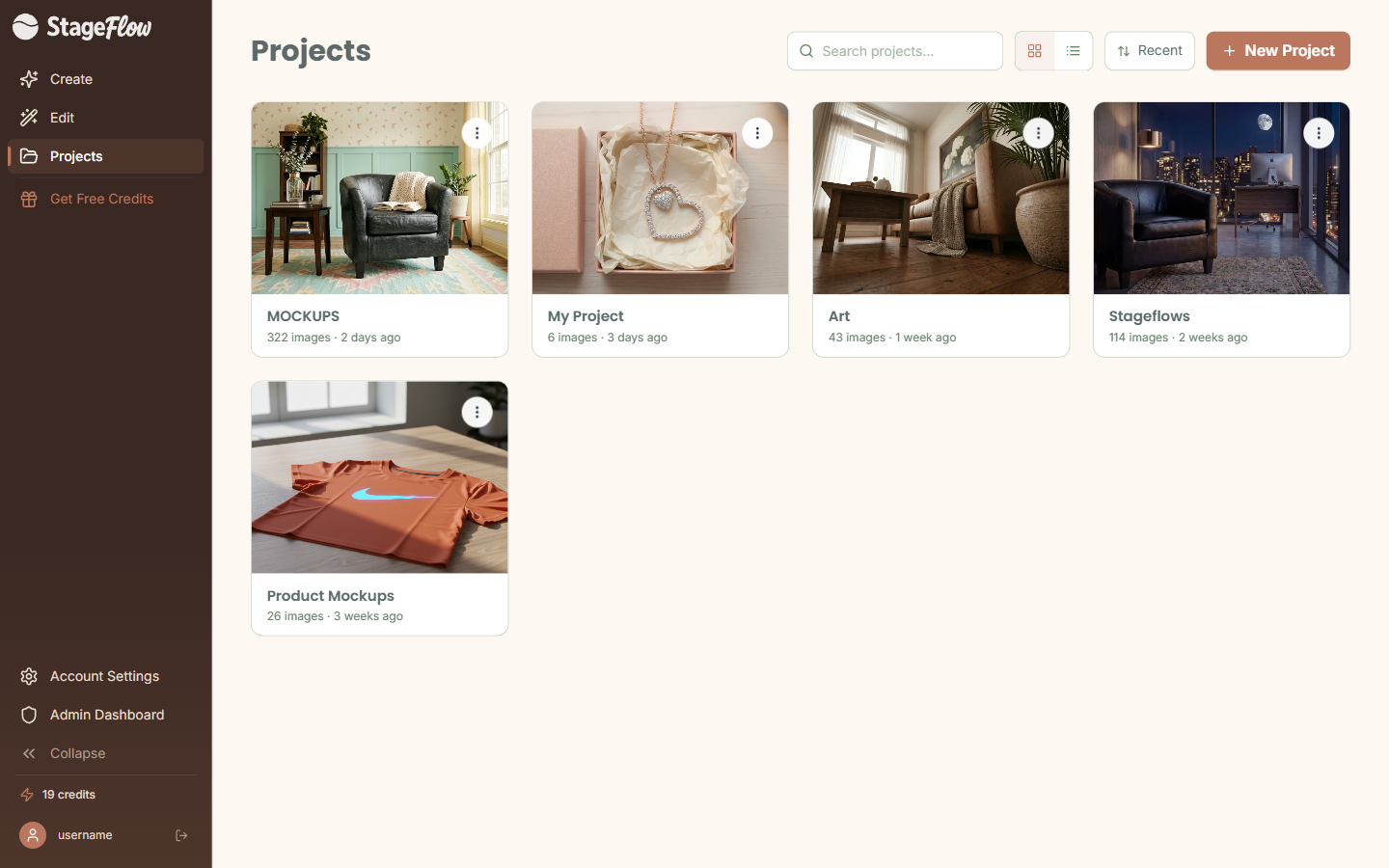
Projects are how you keep your mockups organized in StageFlow. Think of them like folders — one project per Etsy listing, per season, or however you like to work.
You can create a new project from the Projects page or from the project picker on the Create page. Once a project exists, you have a few handy management options:
- Rename — click the project name to edit it inline.
- Duplicate — creates a copy of the project with all of its images.
- Delete — removes the project after a confirmation dialog, so you will not accidentally lose work.
Browsing Your Project Gallery
The Projects page gives you a bird's-eye view of everything you have been working on.
- Toggle between grid view and list view depending on your preference.
- Use the search bar to quickly find a project by name.
- Sort by Recent, Name, or Images count to find what you need fast.
Click any project to open it and see all of its images.
Working With Images in a Project
Inside a project, each image is a mockup you have generated or edited. Click any image to open it on the Edit page where you can refine, crop, or upscale it.
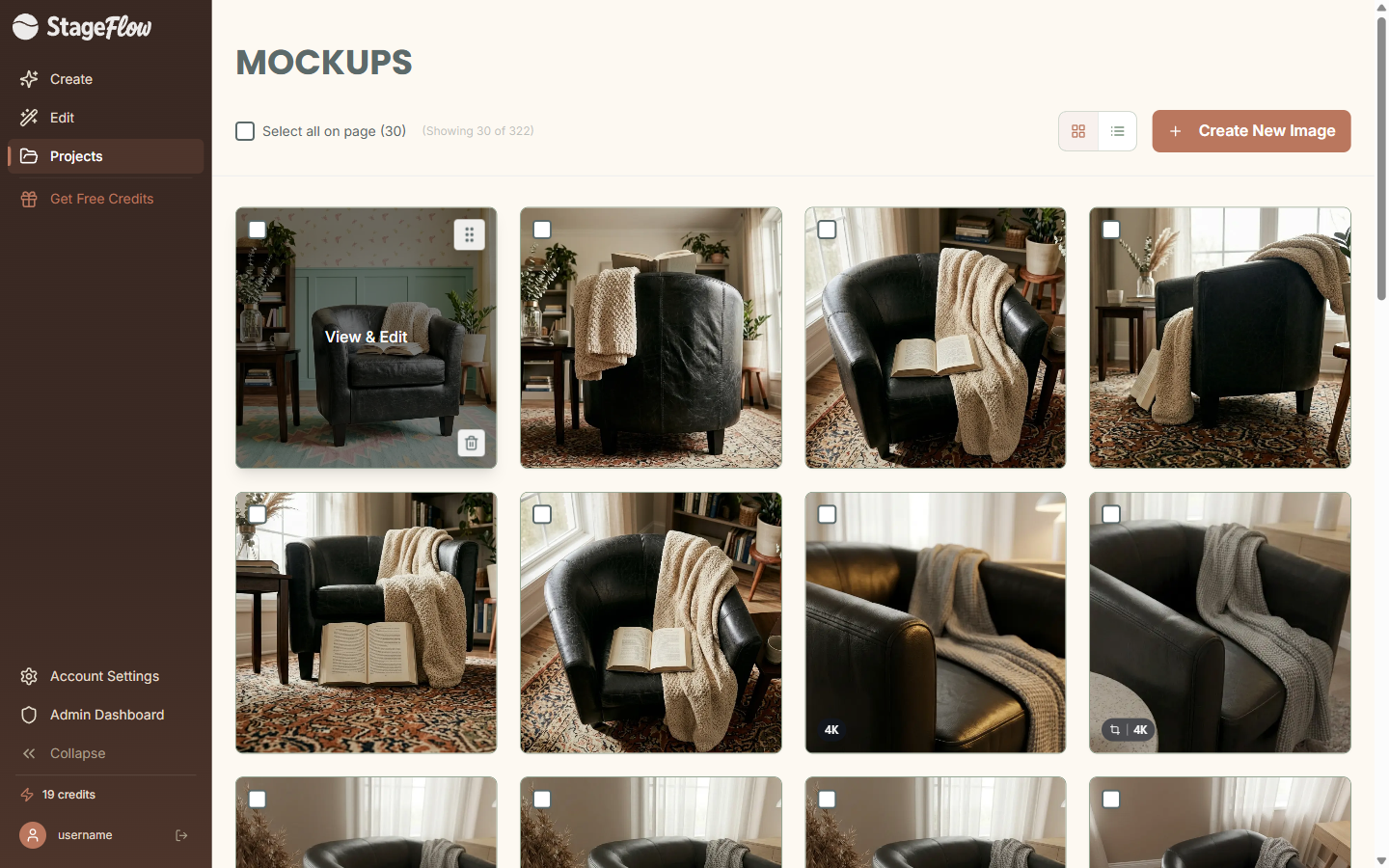
Look for status badges on your images:
- Upscaled — this image has a high-resolution version stored.
- Cropped — this image was created by cropping another mockup.
Every image preserves its full edit history, so you can always trace back to see how it was created.
Reordering Images
Want to arrange your mockups in a specific order — maybe to match your Etsy listing photo sequence? Switch to manual sort mode in your project view.
- Drag handles will appear on each image.
- Drag and drop images to rearrange them however you like.
- Your new order is saved automatically — no save button needed.
Selecting & Bulk Actions
When you need to act on multiple images at once, StageFlow has you covered with bulk selection.
- Click checkboxes to select individual images.
- Shift-click to select a range of images in one go.
Once you have images selected, the following bulk actions become available:
- Delete selected — remove multiple images at once.
- Move to another project — transfer images to a different project.
- Copy to another project — duplicate images into another project while keeping the originals.
- Download selected as ZIP — grab all your chosen mockups in a single download.
Still have questions?
support@stageflow.ai