Editing & Refining
Learn how to polish your mockups with AI refinements, camera adjustments, and non-destructive editing tools.
In this guide
The Edit Page Overview
After generating a mockup, you are automatically taken to the Edit page. This is your creative workspace for turning a good mockup into a great one.
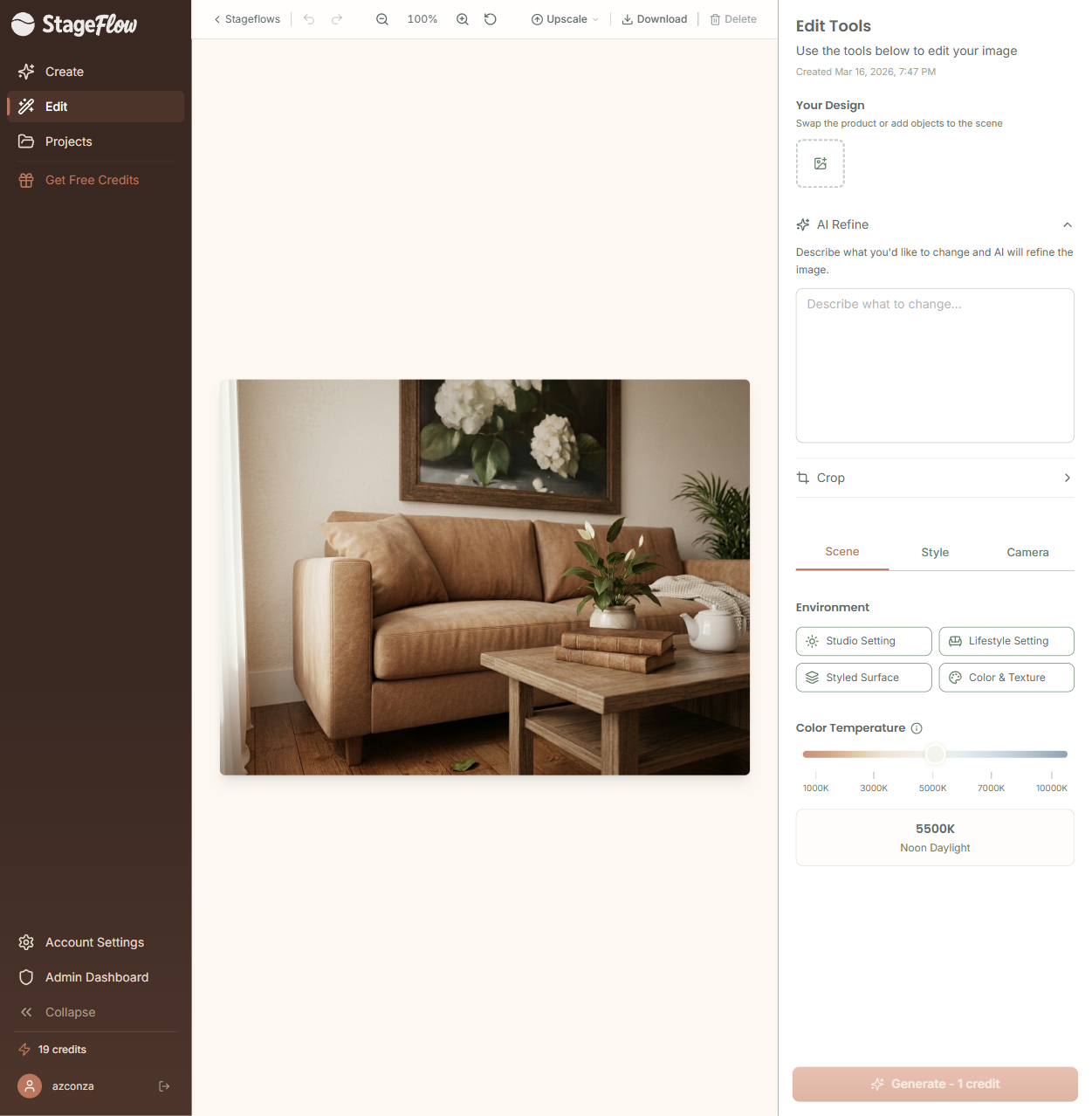
The canvas takes center stage, displaying your mockup front and center. Along the bottom you will find the toolbar with essential actions: undo, redo, zoom controls, upscale to 4K, download, and delete. On the right side, a panel gives you access to the same creative controls available during generation — so you can keep refining without starting over.
Tip: You do not have to get everything perfect in one generation. The Edit page is designed for iterative refinement — generate a starting point, then tweak until it is exactly right.
Refining With a Follow-Up Prompt
The AI Refine text area on the Edit page lets you describe changes you want to make to your existing mockup. Unlike generating from scratch, this uses inpainting — the AI modifies the current image rather than creating a completely new one.
This is perfect for targeted adjustments. You might say "make the background warmer," "add a small plant in the left corner," or "remove the shadow on the right side." The AI will make those changes while preserving everything else.
Each refinement costs 1 credit, just like a fresh generation. But because you are building on an existing image, refinements are often faster and more predictable than starting over.
Changing Scene, Style & Camera After Generation
Changed your mind about the environment, vibe, or camera angle? No problem. The Edit page gives you access to the same Environment, Vibe Library, and Camera controls you used during creation.
Adjust any of these settings and regenerate to see your product in a completely different context. Try your candle in a cozy Lifestyle setting, then switch to a clean Studio shot, all without re-uploading anything. This is a great way to create multiple listing photos from a single product image.
Tip: Etsy listings with multiple lifestyle angles tend to convert better. Use the Edit page to quickly generate 3 to 5 variations of your mockup with different environments and camera angles.
Swapping or Adding Design Images
The Your Designs section on the Edit page shows all the product and brand images currently associated with your mockup. You can add new images or swap existing ones mid-edit to try different combinations.
This is handy when you want to see the same scene with a different product variation — say, the same candle in a different scent label, or the same jewelry design in gold versus silver. Add the new image, regenerate, and compare.
Tip: You can also add your logo or packaging images at the edit stage if you did not include them during the initial generation. The AI will incorporate them into the next refinement.
Undo, Redo & Edit History
The bottom toolbar includes undo and redo buttons that let you step backward and forward through your edit history. Every refinement, crop, and adjustment creates a new version, so you can always jump back to a previous state if a change does not work out.
This is especially useful when you are experimenting with different prompts or settings. Try something bold, and if it misses the mark, just undo and try a different approach. You can navigate through your entire edit history to compare results side by side.
Non-Destructive Editing
Every edit, crop, and refinement in StageFlow creates a brand-new image record. Your original mockup is always preserved, completely untouched. This means you can experiment freely without ever worrying about losing a version you liked.
If you refined five times and decide the second version was actually the best one, just navigate back to it. It is still there, exactly as it was. No exports needed, no "save as" copies to manage.
Tip: Non-destructive editing means you never lose previous versions — you can always go back to an earlier result. Keep in mind that each new generation or refinement still costs 1 credit, but free actions like cropping and downloading let you experiment without spending.
Still have questions?
support@stageflow.ai