Creating Mockups
Learn how to upload products, write great prompts, and generate beautiful AI mockups for your Etsy listings.
In this guide
Selecting or Creating a Project
Every mockup lives inside a project, which makes it easy to keep things organized — one project per product line, per season, or however you like to work.
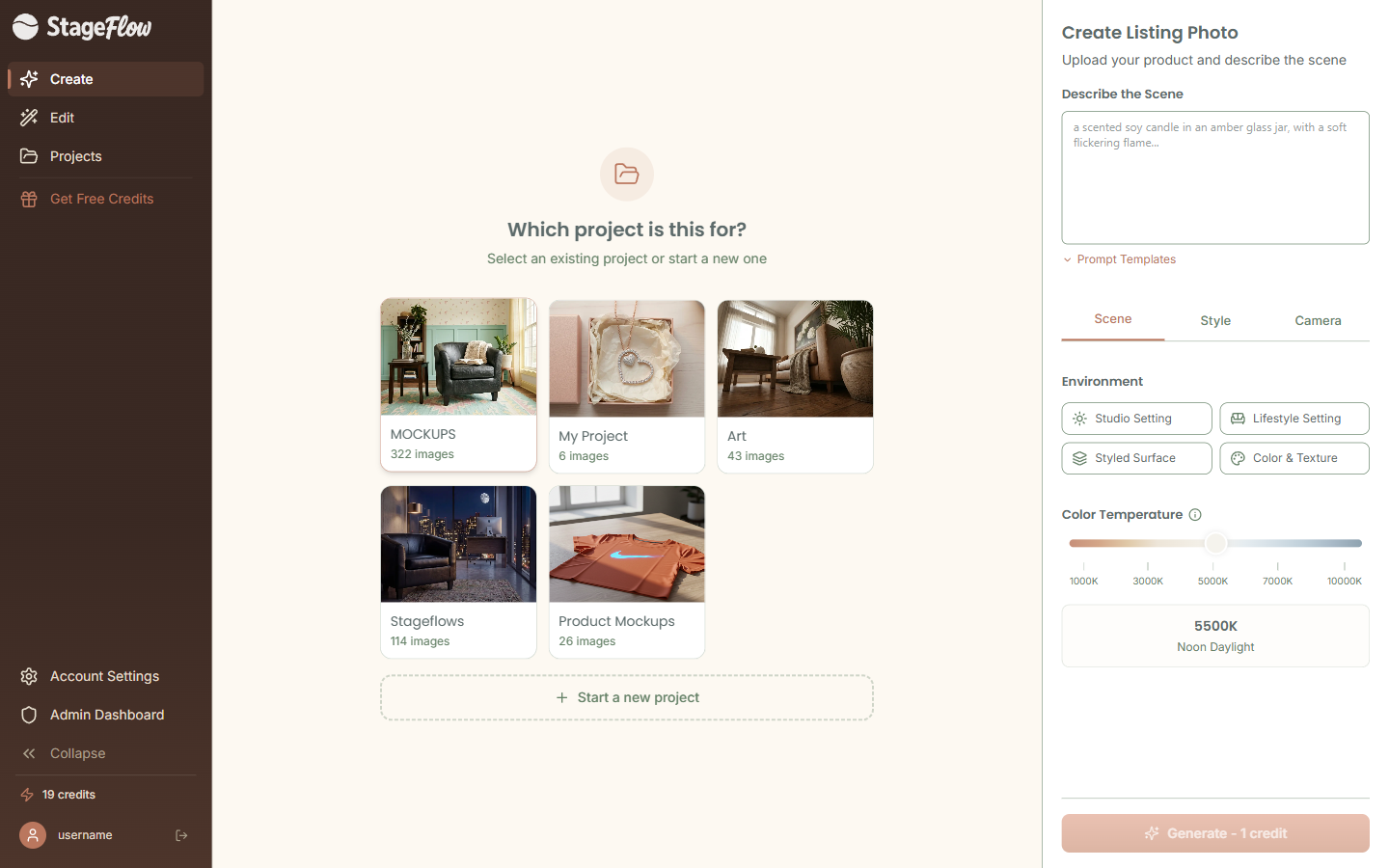
If you already have an account, you will see the project picker when you open the Create page. Click it to browse your existing projects, or type a name to create a new one right there inline. All mockups you generate will be saved to whichever project is currently selected.
New to StageFlow? You can skip the project picker entirely — just start uploading images, writing your prompt, and configuring settings. When you hit Generate, you will be prompted to create an account (free, takes 30 seconds). A default project is created automatically so you can get straight to creating.
Tip: Use descriptive project names like "Holiday Candles 2025" or "Spring Jewelry Collection" so you can find things quickly as your library grows.
Uploading Your Product Images
Drag and drop your product images onto the upload area, or click to browse your files. You can upload up to 10 images at once, and each file can be up to 20MB. StageFlow supports JPG, PNG, and WEBP formats.
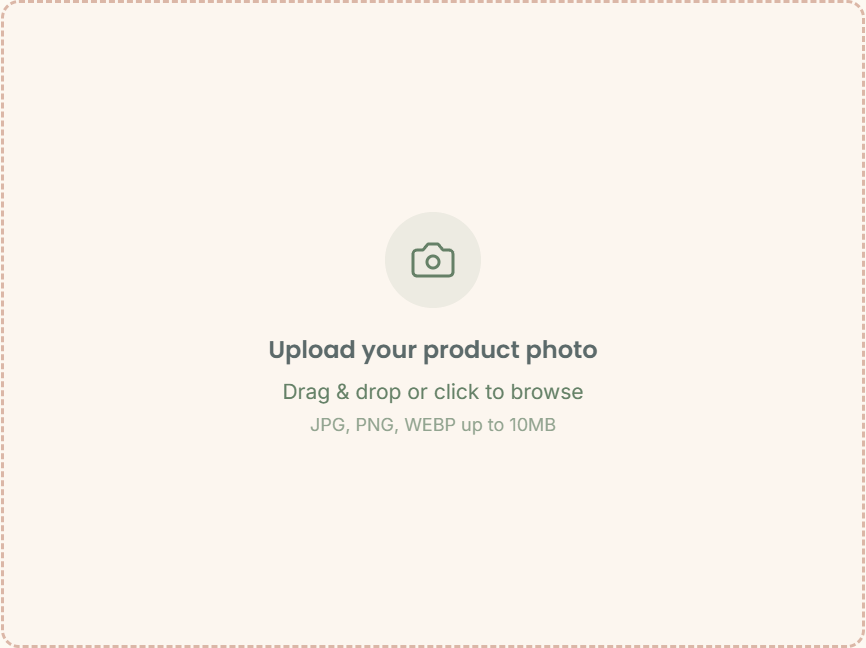
The quality of your product image has a big impact on the final result. Clean, well-lit photos with a simple background give the AI the best starting point. You do not need a professional photo — a decent phone shot on a plain surface works great.
Tip: If your product image has a busy background, the AI may incorporate those elements into the mockup. For the cleanest results, use a photo with a white or neutral background.
Combining Multiple Images
StageFlow is not limited to a single product photo. You can upload your product image alongside your logo, packaging, labels, or other brand assets — and the AI will use all of them as context when generating your mockup.
For example, upload a candle photo plus your brand label, and the AI can place them together in a cohesive lifestyle scene. The more context you give it, the more tailored and realistic the result will be.
Tip: Combining a product image with a packaging mockup or a logo is a great way to create branded lifestyle content that feels polished and consistent across your Etsy shop.
Writing an Effective Prompt
Your prompt tells the AI what kind of scene to create. Think of it as a brief creative direction — describe the setting, the lighting, the mood, and how your product should appear.
Be specific. Instead of "nice background," try something like "a rustic farmhouse kitchen table with soft morning light streaming through a window, fresh herbs in a jar nearby." The more detail you give, the closer the result will be to what you envision.
Not sure where to start? The prompt field shows cycling placeholder suggestions to spark your creativity. These rotate through different scene ideas and styles so you can get a feel for what kinds of descriptions work well.
Tip: Include details about lighting (golden hour, soft diffused, dramatic shadows), surface materials (marble, linen, reclaimed wood), and any props you want nearby (plants, books, coffee cups). These small details make a big difference.
Using Prompt Templates
If you would rather skip the writing and get straight to generating, browse our curated prompt templates. They are organized into categories like Lifestyle, Packaging, and Styled Surface — each one a proven starting point for great results.
Just click a template to load it into your prompt field. You can use it as-is or customize it to better fit your product.
Even better, you can save your own custom templates. Once you find a prompt that produces great results for your products, save it for one-click reuse across all your future mockups.
Tip: Building a library of custom templates is a huge time-saver, especially if you regularly add new products to your shop. Create a few go-to templates for your brand's signature look and reuse them across product lines.
What Happens After You Generate
Once you hit Generate, the AI gets to work creating your mockup. This typically takes about 15 to 30 seconds depending on the complexity of your prompt and the images you provided.
One credit is deducted when the generation starts. Your mockup is automatically saved to the selected project, so you never have to worry about losing your work.
Once your result is ready, StageFlow automatically redirects you to the Edit page. This is where the real magic happens — you can refine the mockup with follow-up prompts, crop it to your preferred dimensions, upscale it to 4K, and download it ready for your Etsy listing.
Still have questions?
support@stageflow.ai