Cropping, Upscaling & Downloading
Get your mockups looking pixel-perfect with cropping tools, HD upscaling, and easy downloads.
Cropping Your Mockups
Need to trim your mockup for a specific listing format or social post? The crop tool lives in the Edit page toolbar and gives you full control over the final frame.
When you crop, you get two quality options:
- Standard — crops from the current resolution of your image. Quick and free.
- HD — crops from an upscaled 4K version of the image, giving you a crisp, high-resolution result.
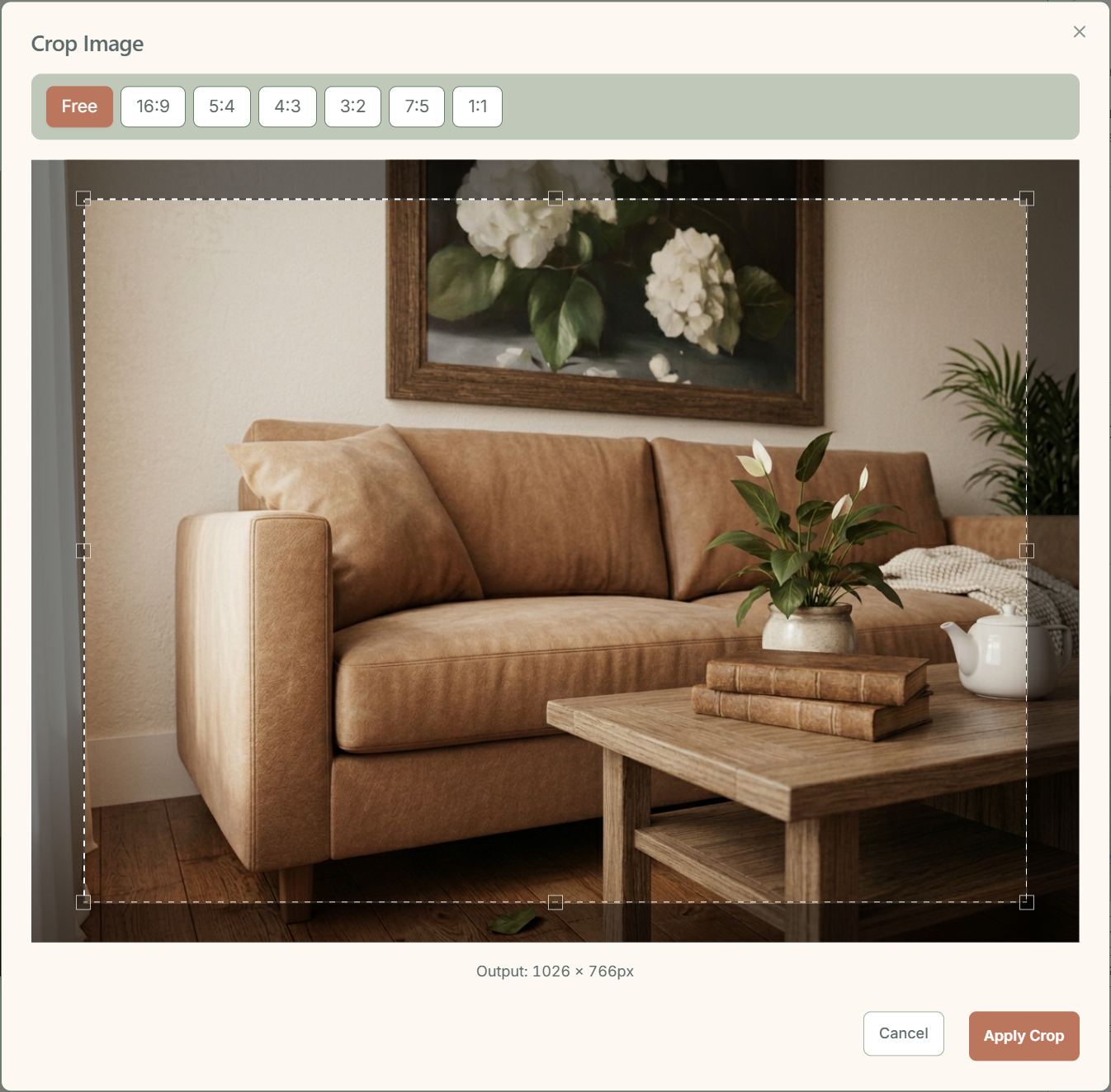
You can choose from 7 aspect ratios: Free, 16:9, 5:4, 4:3, 3:2, 7:5, and 1:1. For any non-square ratio, there is a landscape/portrait toggle so you can flip the orientation with one click.
Upscaling to HD & 4K
Want sharper images for print-on-demand listings or large-format previews? StageFlow offers two upscale tiers:
Every generated image gets one free upscale — you can choose either 2K or 4K. If you upscale to 2K first and later decide you want 4K, that counts as a second upscale and costs 1 credit.
- First upscale (2K or 4K) — free for every image.
- Additional upscales — cost 1 credit each.
Once an image has been upscaled, the higher-resolution version is stored and automatically used for future downloads. No need to upscale again — StageFlow remembers.
Downloading Your Finished Mockup
When you are happy with your mockup, downloading is straightforward. You will find the download button in two places:
- On the Edit page toolbar while you are working on an image.
- In the project image view when browsing your gallery.
StageFlow automatically selects the highest quality version available. If you have upscaled an image, the upscaled version is what gets downloaded — no extra steps needed.
Downloads work on mobile too, so you can grab your finished mockups on the go. All images are downloaded as JPEG files.
Still have questions?
support@stageflow.ai